

What is an MCP Key?
An MCP Key connects an AI tool, such as Claude Code, Cursor, or VS Code, to your silos through the MCP server. The tool sends the key with every request, and the server uses it to find your account and decide what the assistant is allowed to do. An MCP Key starts withjsmcp_. It only works with the MCP server. It can’t read a silo URL or call the Manage API, and an Access Key or Manage Key can’t be used in its place.
MCP Keys are available in the free trial and on the Basic and Pro plans. See Pricing Plans.
How to Create an MCP Key
1
Go to the Keys Page
Click Keys in the sidebar and select the MCP keys card.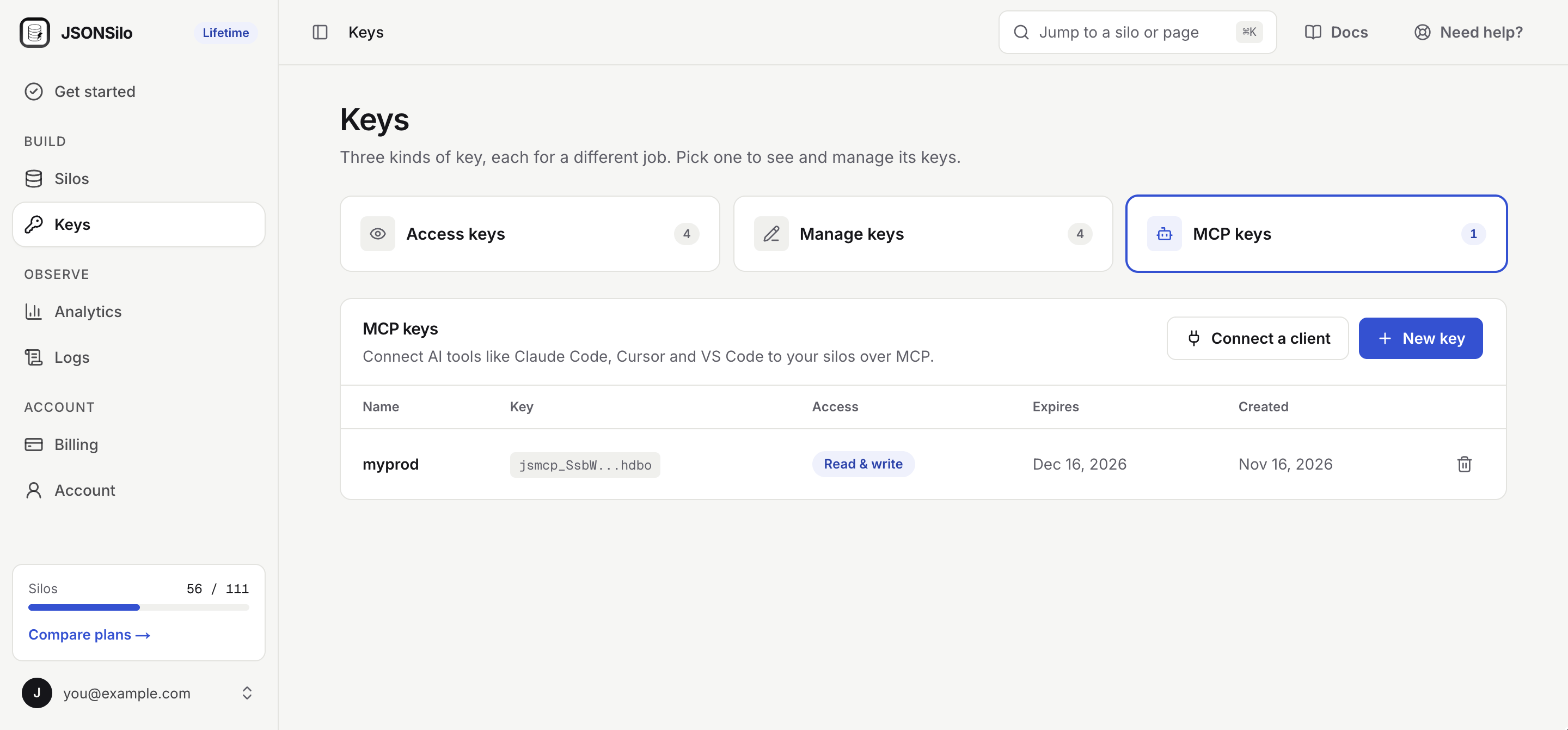
2
Start a New Key
Click the
New key button.3
Set Key Details
In the New MCP key dialog, fill in three fields, then click
Create key.- Key name: A name that tells you where the key is used, for example
Claude Code on my laptop. - Access: What the assistant may do. See Access levels.
- Duration: How long the key stays valid: 1 month, 3 months, 6 months, or 12 months.
On the free trial, MCP Keys last 1 month. Longer durations are available on the Basic and Pro plans.
4
Save the Key and Connect
The MCP key created dialog shows your key, along with setup snippets for Claude Code, Cursor, VS Code, and other clients that already contain the key.Copy the key or one of the snippets, then click 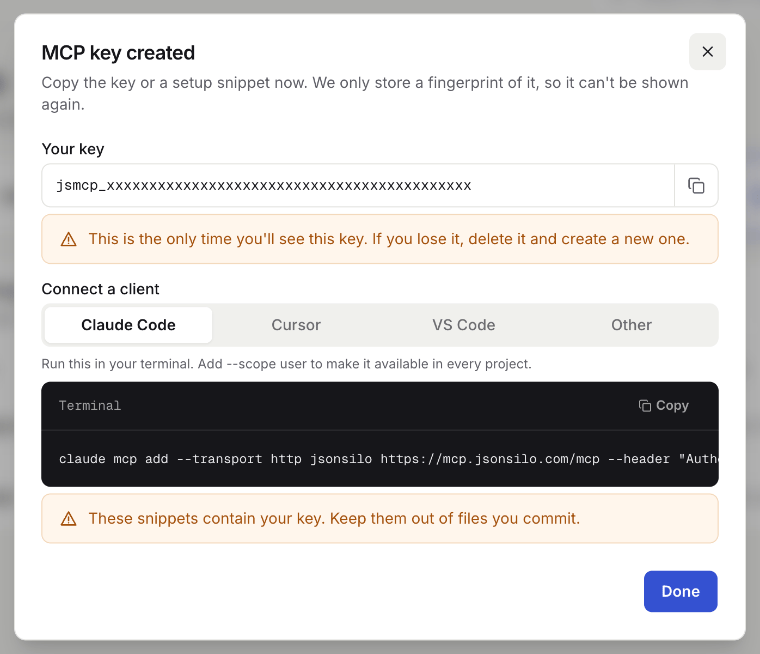
Done.Access Levels
Choose Read only unless the assistant needs to change your data. A key’s access can’t be changed later. To switch, create a new key and delete the old one.
Your MCP Keys
The MCP keys tab lists every key with these columns:
Click
Connect a client to see the setup snippets again. They use a placeholder, jsmcp_YOUR_KEY, in place of your key.
When an MCP Key Expires
An MCP Key stops working on its expiry date. The AI tool using it loses access, and requests return401.
A key can’t be extended. Create a new one, update your AI tool with it, and then delete the old key.
Deleting an MCP Key
1
Go to the Keys Page
Click Keys in the sidebar and select the MCP keys card.
2
Delete the Key
Find the key you want to delete and click the trash icon at the end of its row.
3
Confirm
In the Delete this key? dialog, click the
Delete button.If Your Plan Changes
If your plan no longer includes MCP, your keys are kept but stop working, and the console shows a notice above the list. They work again as soon as you upgrade.Best Practices for Managing MCP Keys
- Keep Your MCP Keys Secret: Treat them like passwords. A setup snippet contains your key, so keep it out of files you commit.
- Use One Key per Tool: Give each AI tool and each computer its own key, so you can delete one without disconnecting the others.
- Prefer Read Only: Give Read & write access only to tools that need to change your data.
- Delete Keys You No Longer Use: A key you have forgotten about is a key someone else could use.