

Introduction
The JSONsilo console is where you create silos, edit their data, manage keys, and watch how your silos are used. This page is a tour of the layout so you know where everything lives.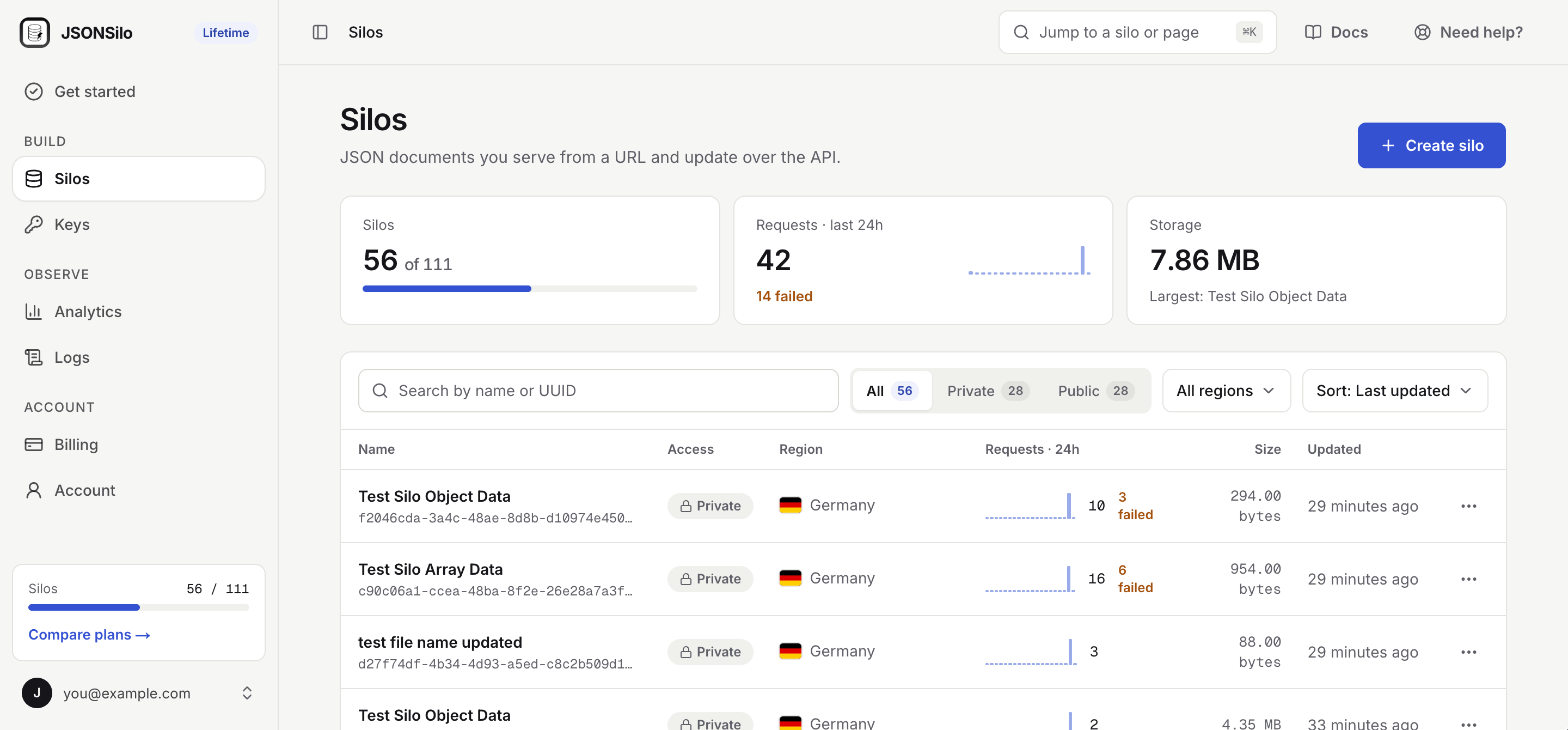
Sidebar
The sidebar groups the screens by what you do with them.
Other parts of the sidebar:
- Plan badge: Next to the JSONsilo logo. It shows your current plan and opens Billing.
- Usage card: Above your email. On a paid plan it shows how many silos you have used out of your limit. On the free trial it shows Trial requests left and Trial time left.
- Account menu: Click your email at the bottom to open My account and Manage plan, switch between Light and Dark appearance, open the homepage or these docs, or Log out.
Top bar
The top bar stays in place on every screen.- Breadcrumbs: Show where you are, for example
Silos / My silo / Settings. Click a crumb to go back up. - Jump to a silo or page: Opens a search box. Type a silo name, a UUID, or a page name and press
Enterto go there. Open it from anywhere with⌘Kon macOS orCtrl Kon Windows and Linux. - Docs: Opens this documentation.
- Need help?: Opens the support section of the FAQ.
Silo screens
Click a silo in the Silos list to open it. Every silo has the same header and three tabs. The header shows the silo’s name, whether it is Public or Private, a Schema locked badge when its schema is locked, its region, its size, and when it was last updated. TheDownload and Edit content buttons sit on the right.
See Manage Silo for a full walkthrough.
Appearance
The console supports light and dark themes. Open Account and use Appearance to choose Light, Dark, or System. The setting applies to the browser you are using.What’s next?
- Create your first silo.
- Create an Access Key to read private silos.
- Lock a schema to keep your data in shape.