

Introduction
Schema lock lets you attach a JSON Schema to a silo and lock it. While a silo is locked, any write that doesn’t match the schema is rejected, and the stored data stays as it was. The point is to protect the apps that read your silo. A bad edit or a buggy script can no longer change the shape of your data, so those apps never get data in a shape they don’t expect.Schema lock is included in the free trial and on the Basic and Pro plans. See Pricing Plans.
How It Works
A silo’s schema has two separate parts:- The schema: A JSON Schema that describes the shape of the data.
- The lock: A switch that decides whether writes are checked against the schema.
Because the schema and the lock are separate, unlocking a silo keeps its schema. You can unlock, make a change, and lock again.
Which writes are checked
While a silo is locked, the check applies to every way of replacing its data:
Changes that don’t touch the data, such as renaming a silo or changing its access or region, are never blocked.
A schema can only be managed in the console. The Manage API and MCP can read whether a silo is locked, but they can’t change or remove a schema. The lock exists to stop automated writers, so they must not be able to loosen it.
Enable a Schema
1
Open the Data & schema tab
Click Silos in the sidebar, open your silo, and click the Data & schema tab. The Schema pane is on the right.You can also get there from the Schema lock card on the silo’s Overview tab by clicking
Create schema.2
Click Enable
While a silo has no schema, the pane shows Schema is off. Click 
Enable.JSONsilo generates a schema from the silo’s current data and saves it unlocked, so nothing is rejected yet.3
Review the schema
Read through the generated schema and adjust it if you need to. The status at the bottom right of the pane shows Valid data when your current data matches the schema in the editor.Switch to the Fields view for a table of every field with its type and whether it is required.
4
Lock it
Click the lock button in the Schema pane’s toolbar. The button turns green, and a Schema locked badge appears in the silo’s header.From now on, every write must match the schema.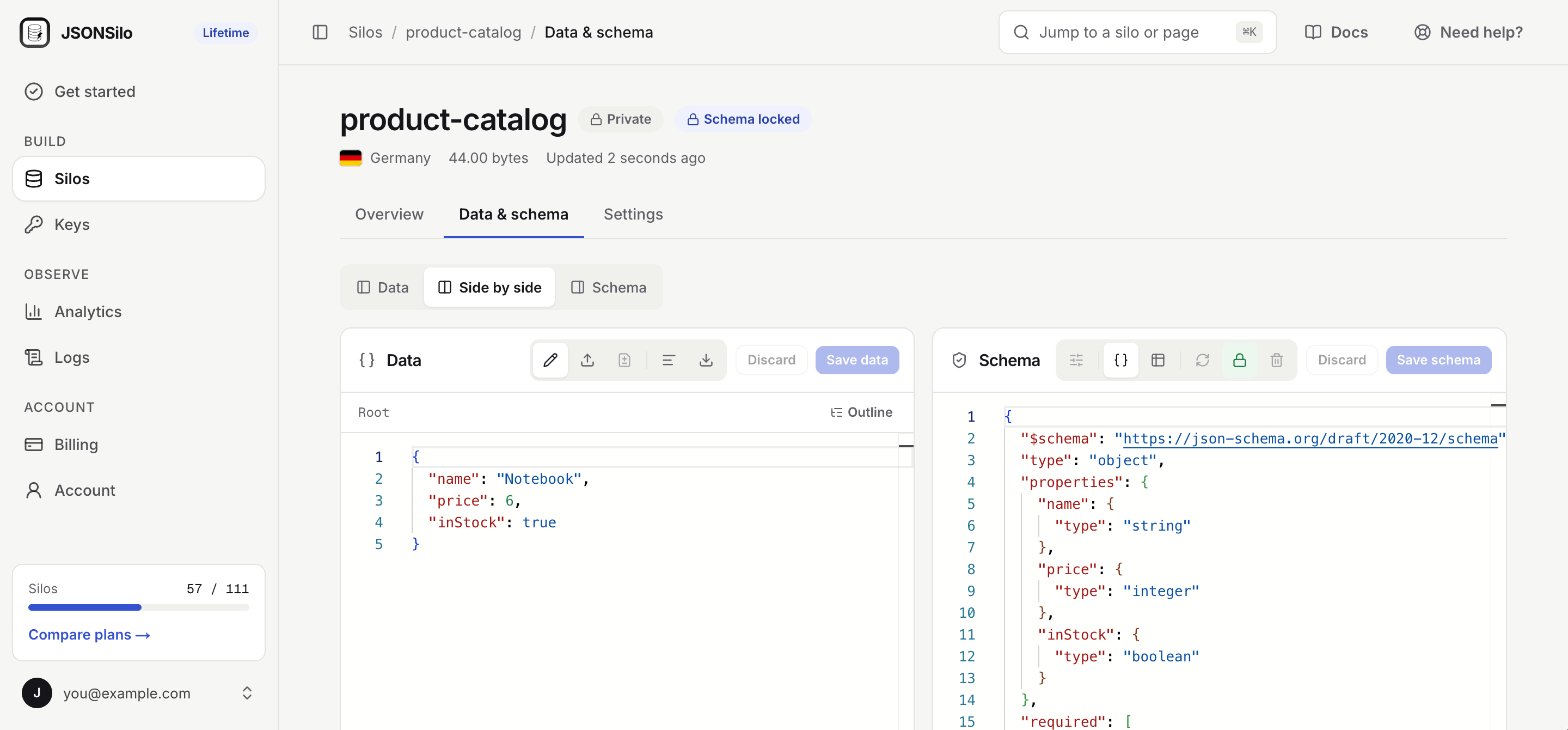
You can’t lock a schema while the silo’s current data doesn’t match it. Fix the data or the schema first.
Strict and Loose Mode
The mode decides how a schema is generated from your data. Open the Mode menu in the Schema pane’s toolbar to switch.Enable generates a strict schema. Switching mode regenerates the schema, which replaces what is in the editor.
A strict schema sets "additionalProperties": false, and a loose schema leaves it out. In both modes, a field is marked as required only when every object at that position has it.
Example
Suppose your silo data looks like this:data.json
schema.json
price to the string "19.99" is rejected, and so is a write that adds a color field. In loose mode, the color field would be accepted.
Schema Pane Toolbar
- Mode: Choose Strict or Loose. Switching regenerates the schema.
- JSON view / Fields view: Edit the schema as JSON, or read it as a table of fields.
- Regenerate from data: Builds a fresh schema from the data in the data editor, unsaved edits included. A dot on the button means the data no longer matches the schema.
- Lock: Locks or unlocks the saved schema.
- Remove schema: Deletes the schema. The silo accepts any JSON again, and its data doesn’t change. Unlock the schema first.
- Discard: Throws away your unsaved edits to the schema.
- Save schema: Saves the schema in the editor. Saving keeps the lock as it is.
Edit a Locked Schema
A locked schema is read-only. To change it:1
Unlock
Click the lock button to unlock the schema. Writes are no longer checked.
2
Edit and save
Edit the schema, or click Regenerate from data to rebuild it, then click
Save schema.3
Lock again
Click the lock button. If you have unsaved edits, locking saves them in the same step.
Write Your Own Schema
You don’t have to use a generated schema. You can write or paste any JSON Schema in the editor.Supported drafts
Set$schema to choose a draft. Without a $schema, draft 2020-12 is assumed.
Limits
A schema is checked when you save it. It must follow these rules:- It must be a JSON object, at most 64 KB in size and 32 levels deep.
$refmust point inside the same schema, for example#/$defs/product. Remote references are not supported.$idis only allowed at the root of the schema.$dynamicRefand$recursiveRefare not supported.- Every
patternmust be a valid regular expression of at most 512 characters.
Error Response
When a write through the Manage API doesn’t match a locked schema, the request returns422 and nothing is saved:
path: A JSON Pointer to the invalid value. An empty path means the root of the document.message: Why the value is invalid.
Note: The check stops at the first problem it finds, so errors contains one entry. Fix it and send the request again to find the next one.
Plans and Downgrades
- Setting, changing, and generating a schema needs a plan that includes schema lock.
- Removing a schema is allowed on every plan.
- Checking writes against a locked schema applies on every plan.