> ## Documentation Index
> Fetch the complete documentation index at: https://docs.jsonsilo.com/llms.txt
> Use this file to discover all available pages before exploring further.
# Quick Start
> Get started quickly with JSONsilo
Before you begin, ensure that you have a JSONsilo account. If you don't have one yet, [sign up here](https://console.jsonsilo.com/signup) and complete the onboarding process.
During the onboarding process, you will be prompted to create and deploy your first JSON file to JSONsilo. Follow the instructions provided in the onboarding wizard to deploy your JSON.
After completing the onboarding process and deploying your JSON file to JSONsilo, you will get a unique URL to access it. The URL format depends on whether your silo is private or public:
Replace `[region-code]` with the appropriate region code for your silo, and `[file-uuid]` with the unique identifier assigned to your JSON file.
#### Private Silo URL Format
```bash theme={null}
https://[region-code].jsonsilo.com/[file-uuid]
```
#### Public Silo URL Format
```bash theme={null}
https://[region-code].jsonsilo.com/public/[file-uuid]
```
### Supported Region Codes
| Region Code | Description |
| ------------ | ------------------ |
| `api` | General API region |
| `sg-01-api` | Singapore region |
| `usc-01-api` | US Central region |
For more details about supported regions, please refer to the [Regions Documentation](/how-to/manage/region).
#### Retrieving your file uuid and region code
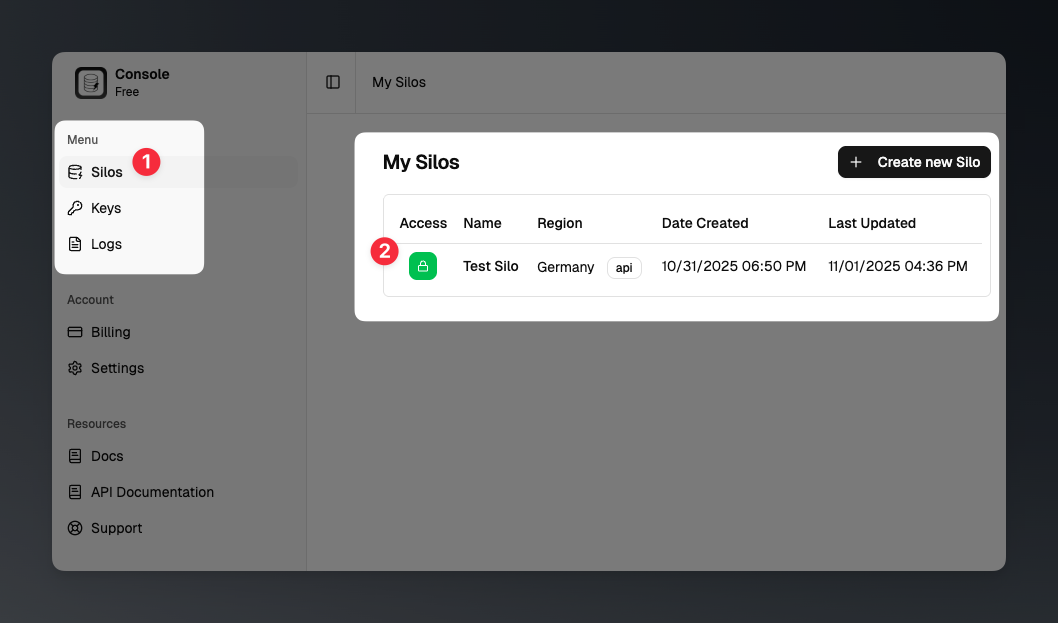
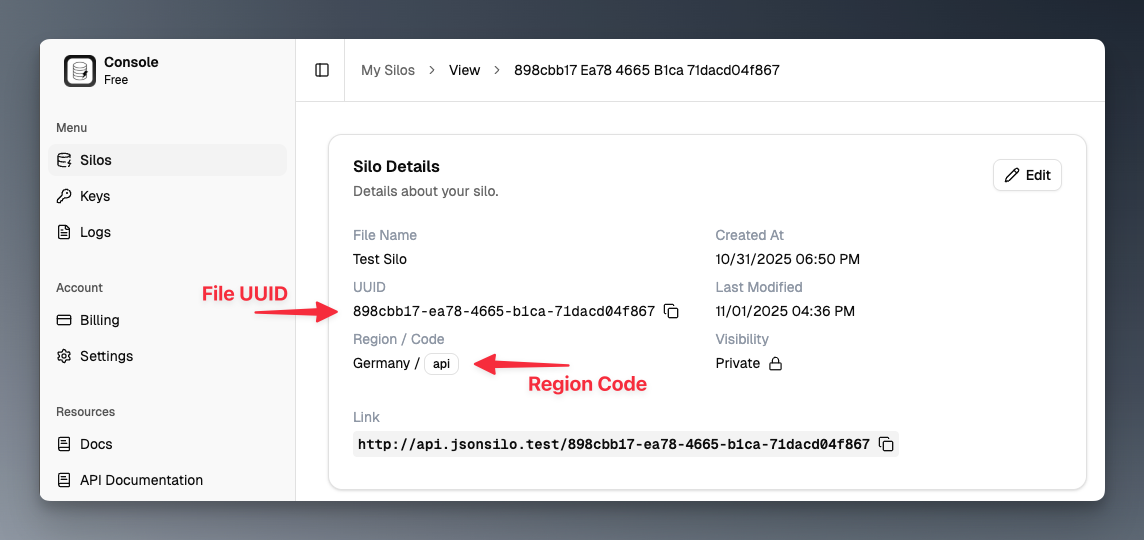
To find your `file-uuid` and `region-code`, sign in to your JSONsilo console and navigate to the "Silos" and click one of your silos from the list.
 Here, you will see the details of your silo, including the file UUID and the region where your silo is hosted.
 ### Retrieving your Access Key for Private Silo
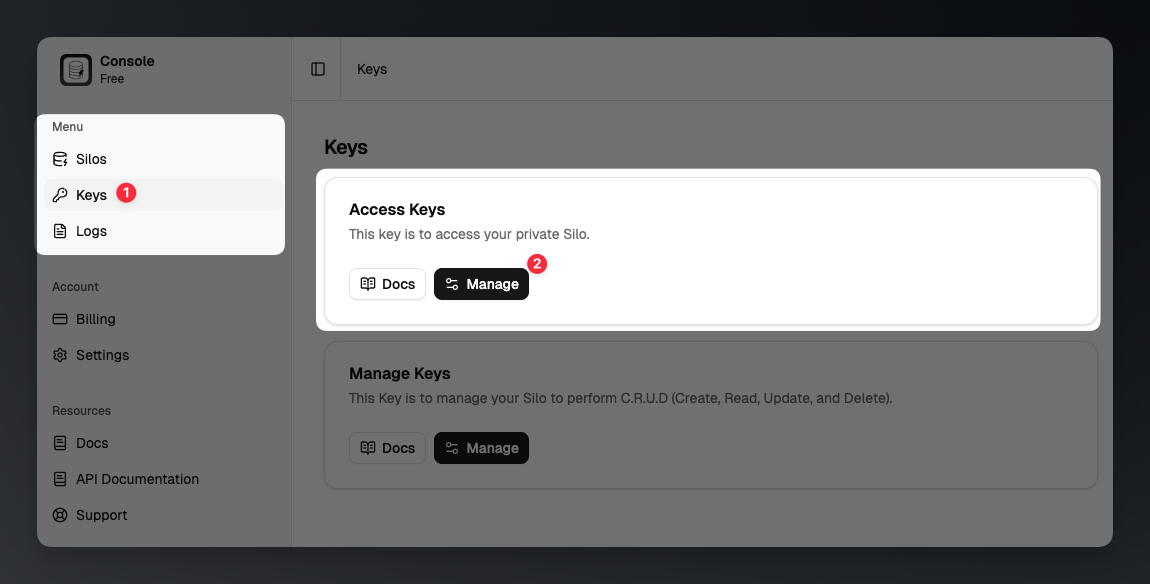
To retrieve your Access Key for a private silo, go to the "Keys" menu in your JSONsilo console and click the `Manage` button.
### Retrieving your Access Key for Private Silo
To retrieve your Access Key for a private silo, go to the "Keys" menu in your JSONsilo console and click the `Manage` button.
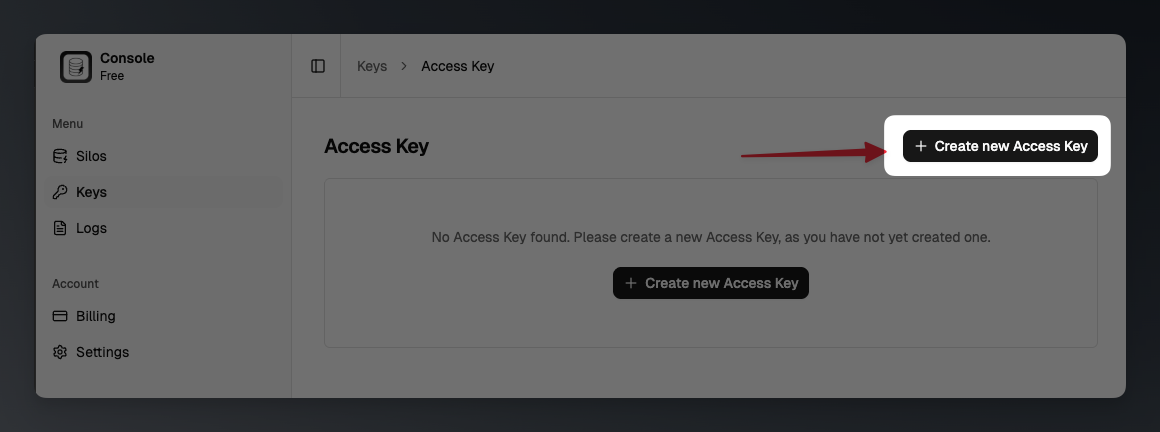
 Here, you can create a new Access key or view your existing keys. Click the `Create new Access Key` button to generate a new key if you don't have one yet.
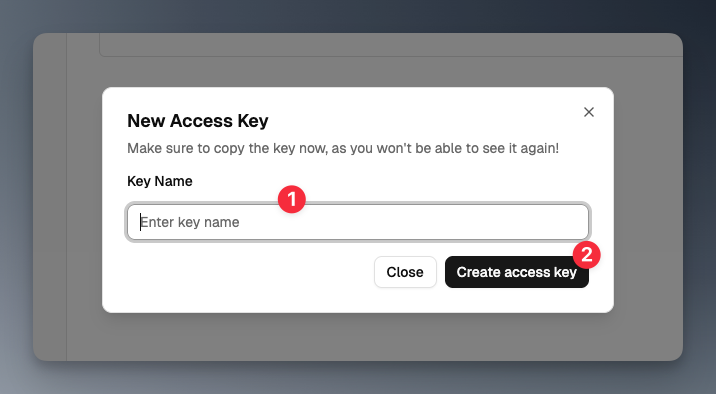
 A dialog will appear to prompt you to enter a key name for your Access Key. After entering the name, click the `Create access key` button to generate the key.
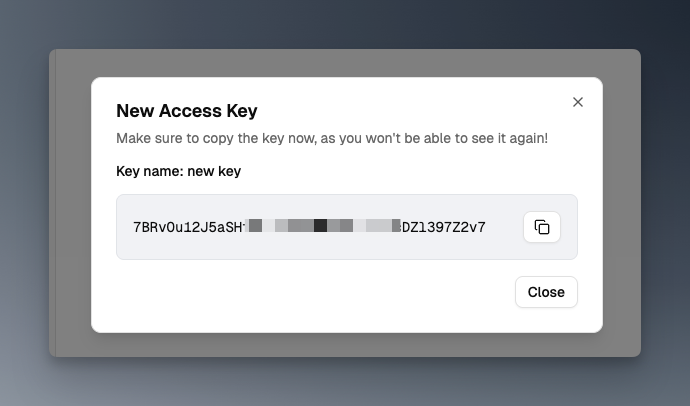
 After creating the Access Key, make sure to copy and save it securely, as you will need it to access your private silo.
 If you lose your Access Key, you can generate a new one by following the same steps. Make sure to revoke any old keys that you no longer use to keep your account secure.
### Accessing Your JSON File
Below are examples of how to access your JSON file using the generated URL.
**Accessing a Private Silo**
To access a private silo, include your Access Key in the request headers. Use the `X-SILO-KEY` header to provide your Access Key.
```bash Terminal theme={null}
curl -X GET \
-H 'X-SILO-KEY: ' \
-H 'Content-Type: application/json' \
https://[region-code].jsonsilo.com/[file-uuid]
```
**Accessing a Public Silo**
For public silos, you can access the JSON file directly without any authentication headers.
```bash Terminal theme={null}
curl -X GET \
-H 'Content-Type: application/json' \
https://[region-code].jsonsilo.com/public/[file-uuid]
```
**Accessing a Private Silo**
To access a private silo, include your Access Key in the request headers. Use the `X-SILO-KEY` header to provide your Access Key.
```javascript main.js theme={null}
fetch('https://[region-code].jsonsilo.com/[file-uuid]', {
method: 'GET',
headers: {
'X-SILO-KEY': '',
'Content-Type': 'application/json'
}
})
.then(response => response.json())
.then(data => console.log(data))
.catch(error => console.error('Error:', error));
```
**Accessing a Public Silo**
For public silos, you can access the JSON file directly without any authentication headers.
```javascript main.js theme={null}
fetch('https://[region-code].jsonsilo.com/public/[file-uuid]', {
method: 'GET',
headers: {
'Content-Type': 'application/json'
}
})
.then(response => response.json())
.then(data => console.log(data))
.catch(error => console.error('Error:', error));
```
**Accessing a Private Silo**
To access a private silo, include your Access Key in the request headers. Use the `X-SILO-KEY` header to provide your Access Key.
```python main.py theme={null}
import requests
url = 'https://[region-code].jsonsilo.com/[file-uuid]'
headers = {
'X-SILO-KEY': '',
'Content-Type': 'application/json'
}
response = requests.get(url, headers=headers)
if response.status_code == 200:
print(response.json())
else:
print('Error:', response.status_code)
```
**Accessing a Public Silo**
For public silos, you can access the JSON file directly without any authentication headers.
```python main.py theme={null}
import requests
url = 'https://[region-code].jsonsilo.com/public/[file-uuid]'
headers = {
'Content-Type': 'application/json'
}
response = requests.get(url, headers=headers)
if response.status_code == 200:
print(response.json())
else:
print('Error:', response.status_code)
```
If you lose your Access Key, you can generate a new one by following the same steps. Make sure to revoke any old keys that you no longer use to keep your account secure.
### Accessing Your JSON File
Below are examples of how to access your JSON file using the generated URL.
**Accessing a Private Silo**
To access a private silo, include your Access Key in the request headers. Use the `X-SILO-KEY` header to provide your Access Key.
```bash Terminal theme={null}
curl -X GET \
-H 'X-SILO-KEY: ' \
-H 'Content-Type: application/json' \
https://[region-code].jsonsilo.com/[file-uuid]
```
**Accessing a Public Silo**
For public silos, you can access the JSON file directly without any authentication headers.
```bash Terminal theme={null}
curl -X GET \
-H 'Content-Type: application/json' \
https://[region-code].jsonsilo.com/public/[file-uuid]
```
**Accessing a Private Silo**
To access a private silo, include your Access Key in the request headers. Use the `X-SILO-KEY` header to provide your Access Key.
```javascript main.js theme={null}
fetch('https://[region-code].jsonsilo.com/[file-uuid]', {
method: 'GET',
headers: {
'X-SILO-KEY': '',
'Content-Type': 'application/json'
}
})
.then(response => response.json())
.then(data => console.log(data))
.catch(error => console.error('Error:', error));
```
**Accessing a Public Silo**
For public silos, you can access the JSON file directly without any authentication headers.
```javascript main.js theme={null}
fetch('https://[region-code].jsonsilo.com/public/[file-uuid]', {
method: 'GET',
headers: {
'Content-Type': 'application/json'
}
})
.then(response => response.json())
.then(data => console.log(data))
.catch(error => console.error('Error:', error));
```
**Accessing a Private Silo**
To access a private silo, include your Access Key in the request headers. Use the `X-SILO-KEY` header to provide your Access Key.
```python main.py theme={null}
import requests
url = 'https://[region-code].jsonsilo.com/[file-uuid]'
headers = {
'X-SILO-KEY': '',
'Content-Type': 'application/json'
}
response = requests.get(url, headers=headers)
if response.status_code == 200:
print(response.json())
else:
print('Error:', response.status_code)
```
**Accessing a Public Silo**
For public silos, you can access the JSON file directly without any authentication headers.
```python main.py theme={null}
import requests
url = 'https://[region-code].jsonsilo.com/public/[file-uuid]'
headers = {
'Content-Type': 'application/json'
}
response = requests.get(url, headers=headers)
if response.status_code == 200:
print(response.json())
else:
print('Error:', response.status_code)
```