> ## Documentation Index
> Fetch the complete documentation index at: https://docs.jsonsilo.com/llms.txt
> Use this file to discover all available pages before exploring further.
# Access Keys
## What is an Access Key?
An Access Key is a unique identifier used to access private silos in JSONsilo. When you create a private silo, you need an Access Key to view or modify the data. This ensures that only authorized users can access the silo's contents.
## How to Generate an Access Key
To generate a new Access Key, follow these steps:
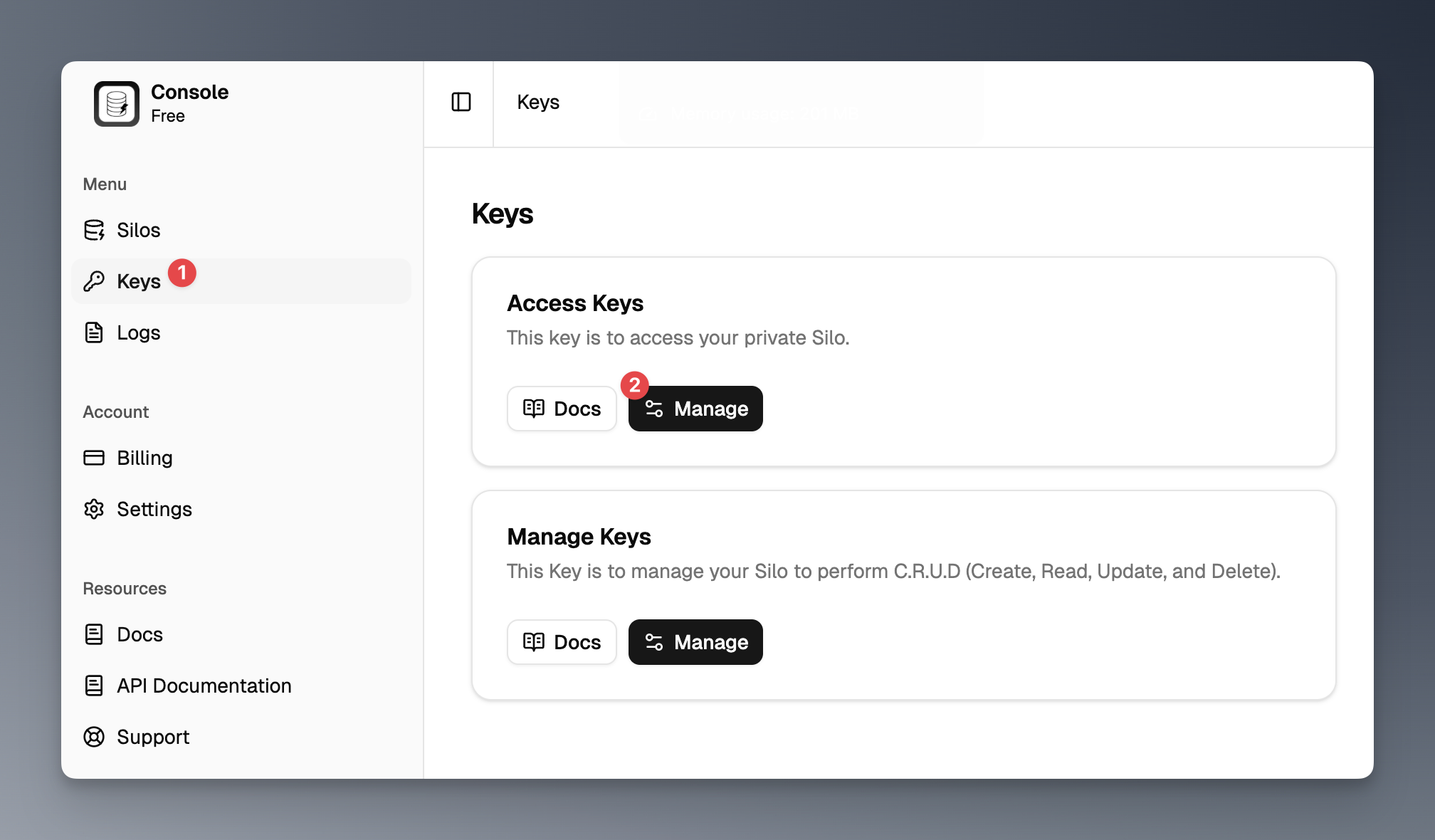
Click on the "Keys" menu in the sidebar and then click the `Manage` button.
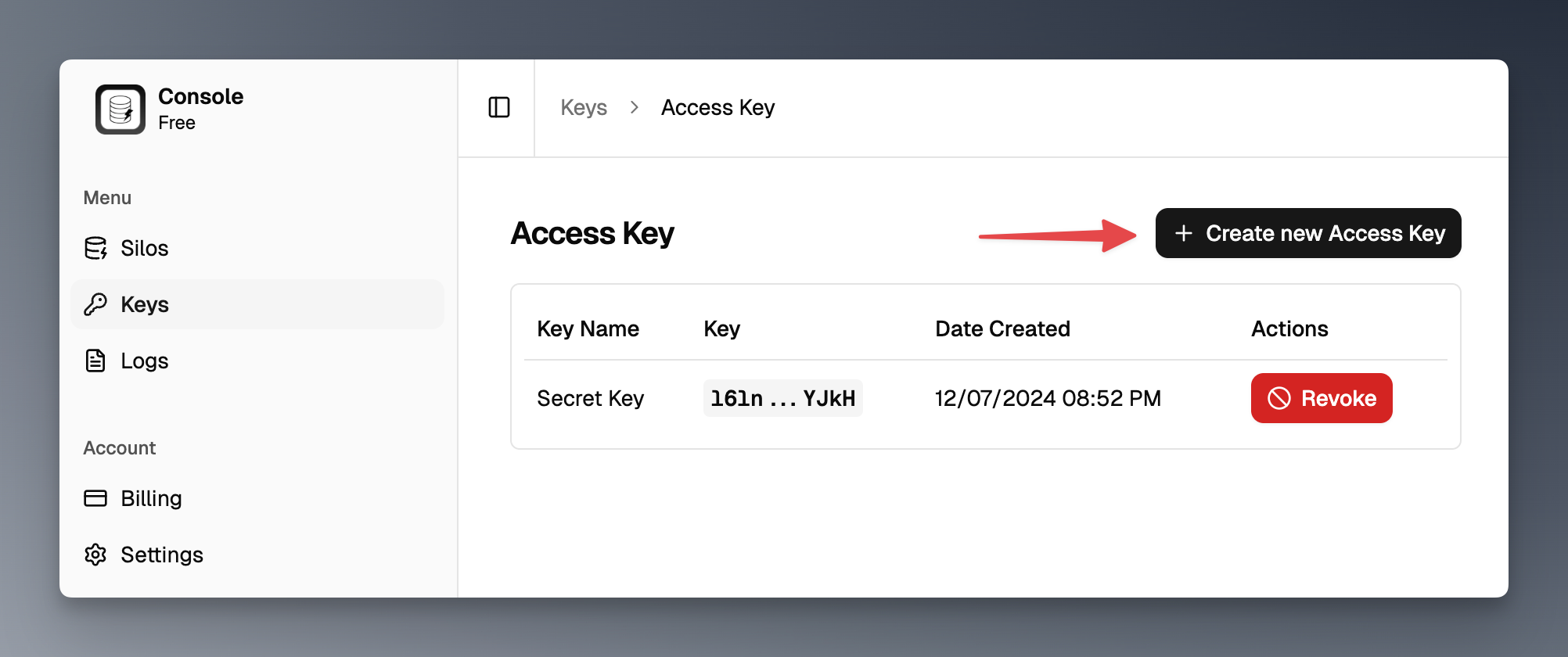
 Click the `Create new Access Key` button to generate a new Access Key.
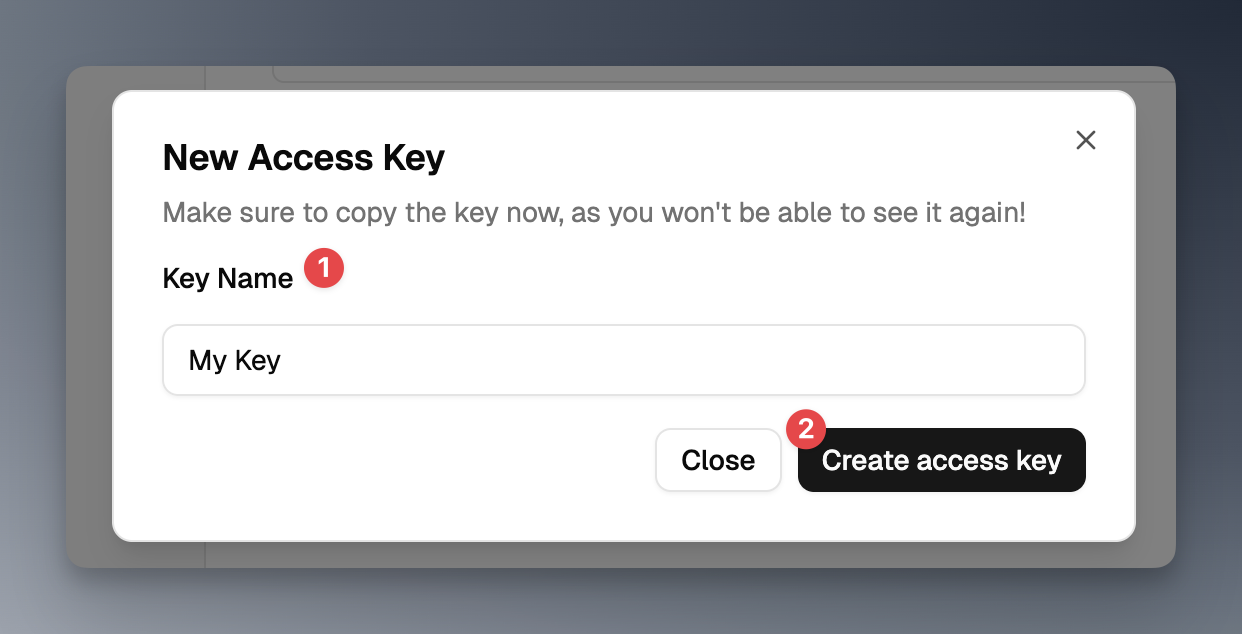
 In the dialog, enter a name for your Access Key and click the `Create Access Key` button.
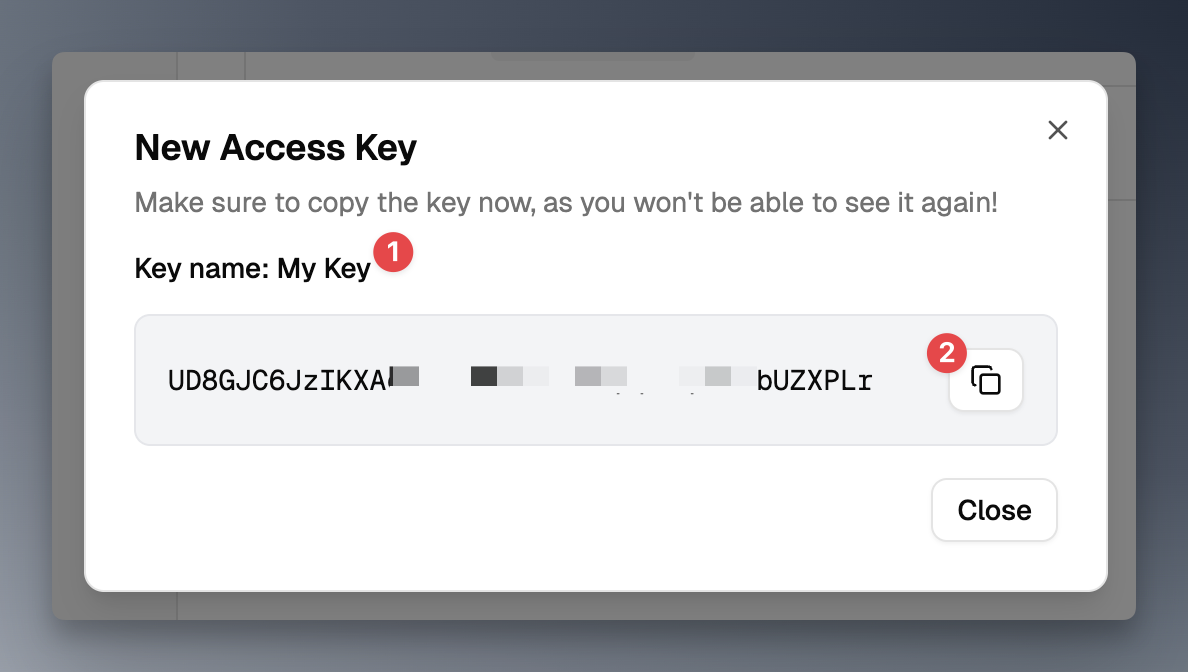
 Copy the Access Key and store it securely. You will need it to access your private silo.
Copy the key now, as you won't be able to see it again!
Copy the Access Key and store it securely. You will need it to access your private silo.
Copy the key now, as you won't be able to see it again!
 ## Revoking an Access Key
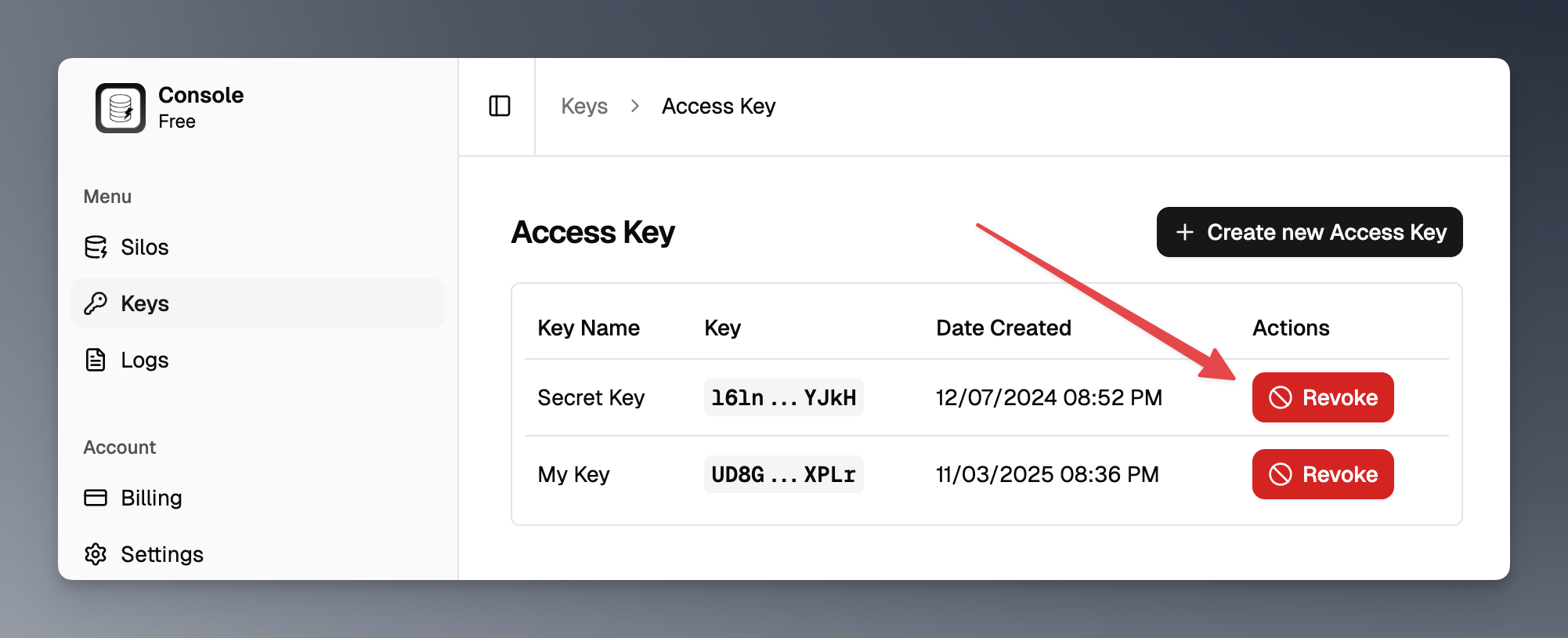
To revoke an Access Key, follow these steps:
Click on the "Keys" menu in the sidebar and then click the `Manage` button.
Find the Access Key you want to revoke in the list and click the `Revoke` button next to it.
## Revoking an Access Key
To revoke an Access Key, follow these steps:
Click on the "Keys" menu in the sidebar and then click the `Manage` button.
Find the Access Key you want to revoke in the list and click the `Revoke` button next to it.
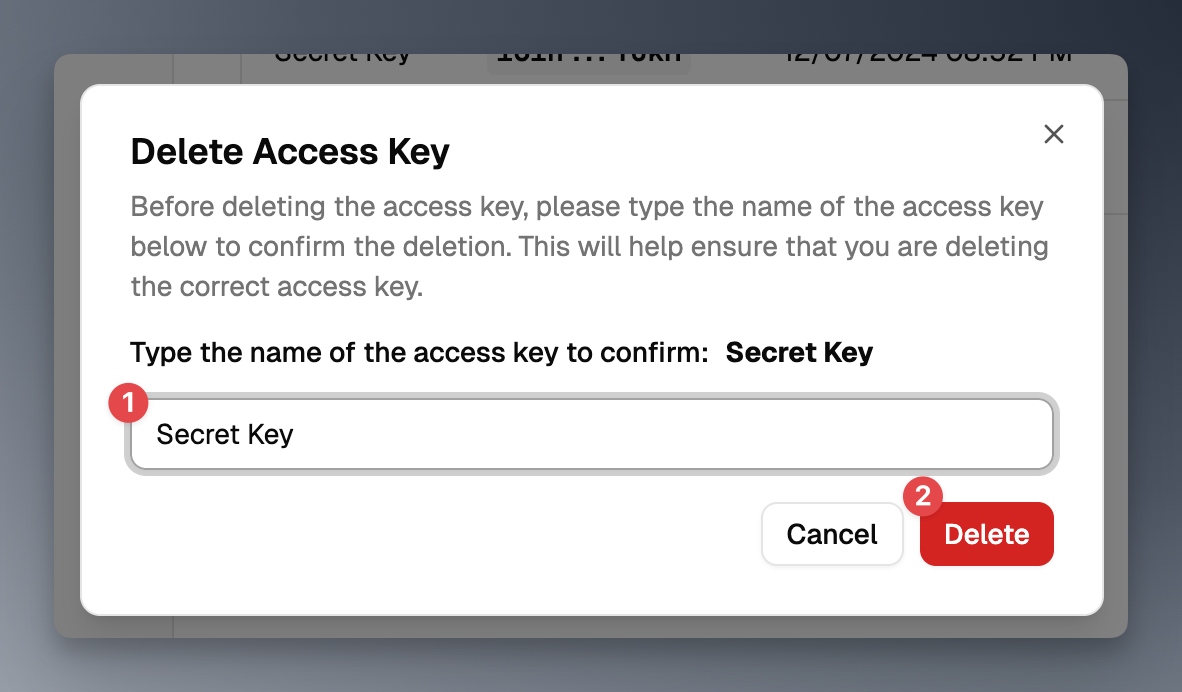
 In the confirmation dialog, enter the key name and click the `Delete` button to revoke the Access Key.
 ## Best Practices for Managing Access Keys
* **Keep Your Access Keys Secret**: Treat your Access Keys like passwords. Do not share them publicly or expose them in client-side code.
* **Rotate Your Access Keys Regularly**: Periodically regenerate your Access Keys to minimize the risk of unauthorized access.
* **Use Environment Variables**: Store your Access Keys in environment variables instead of hardcoding them in your application.
## Best Practices for Managing Access Keys
* **Keep Your Access Keys Secret**: Treat your Access Keys like passwords. Do not share them publicly or expose them in client-side code.
* **Rotate Your Access Keys Regularly**: Periodically regenerate your Access Keys to minimize the risk of unauthorized access.
* **Use Environment Variables**: Store your Access Keys in environment variables instead of hardcoding them in your application.